How to Attach Files in a Group Chat on Secure Chat
Introduction:
Secure Chat offers a convenient way to share files with participants in a group chat. This guide will walk you through the process of attaching various types of files to a group chat, including photos, documents, and more. Learn how to make your group conversations more engaging and efficient by sharing files seamlessly using Secure Chat.
Step-by-Step Guide:
Step 1: Access the Group Chat
Start by accessing the group chat where you want to share the file. If you're not already in the group chat, navigate to it from the chat list.
Step 2: Initiate File Attachment
In the group chat window, locate the attachment button (usually represented by a paperclip icon) and tap on it to initiate the file attachment process.
Step 3: Activate the File Manager
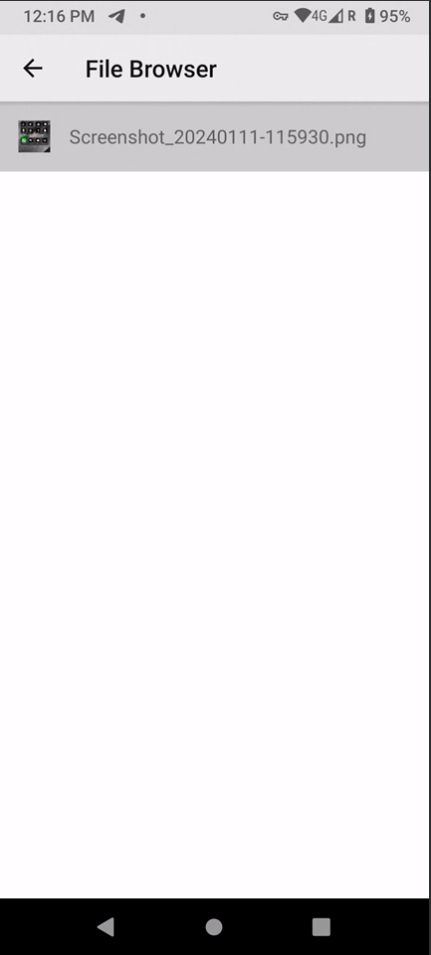
Upon tapping the attachment button, Secure Chat will activate the file manager on your device. The file manager allows you to browse your device's storage for the file you wish to attach.
Step 4: Select the File
Browse through your device's storage to find the desired file you want to share. You can choose files from various folders, including images, documents, videos, and more.
Step 5: Choose an file to send from Secure Vault app.
Step 5: Choose an file to send from Secure Vault app.
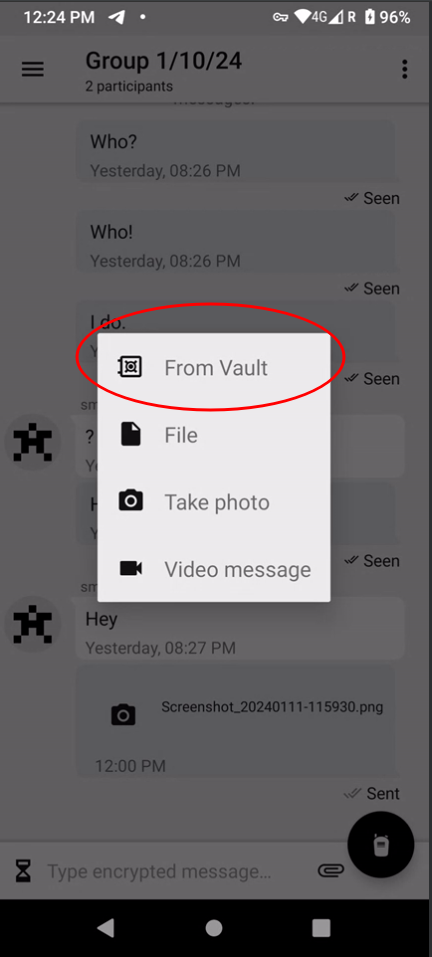
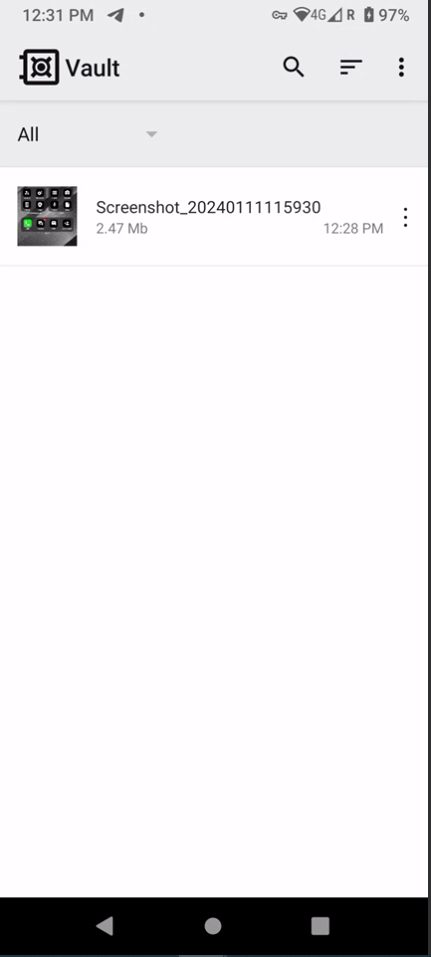
If you have files in Secure Vault app, Secure Chat allows you to choose from those files as well and send them in chats or group chats.
Step 6: Confirm the Attachment
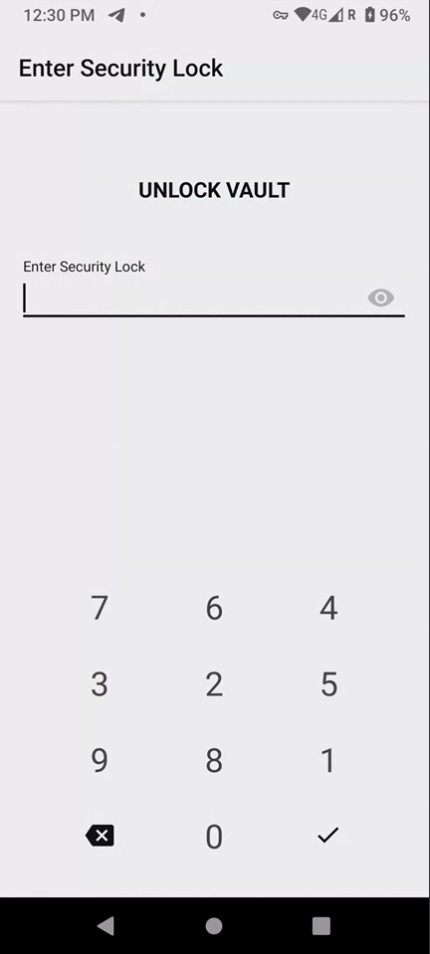
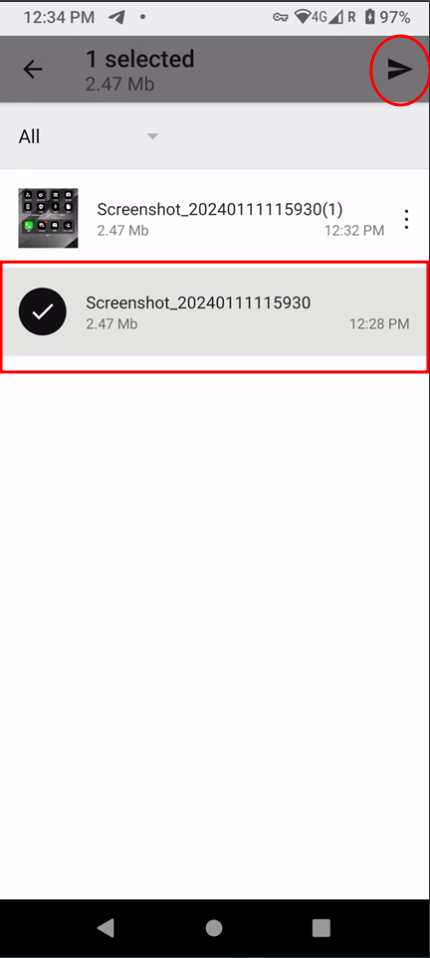
After clicking on "From Vault" option you will need to enter your Secure Vault password/PIN code and select the file by clicking on it. The file grays out and you need to confirm the choice by clicking on the arrow in the upper right corner.
Step 7: File Sent
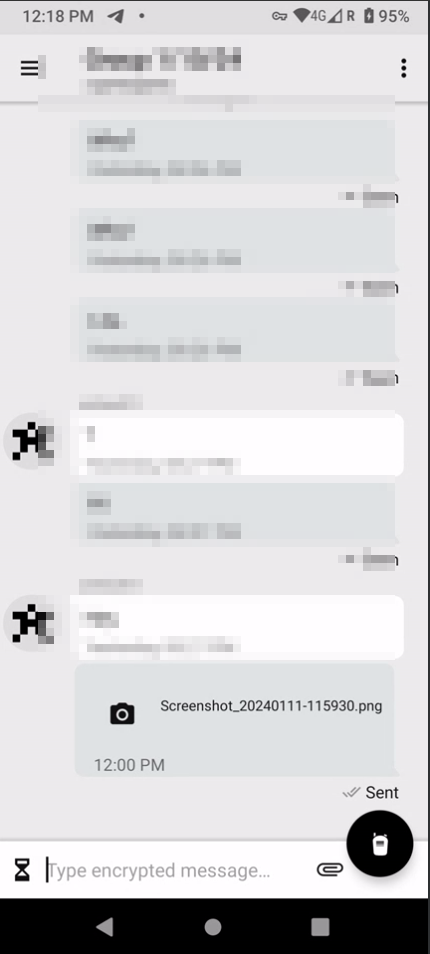
Once you confirm the attachment, Secure Chat will return to the group chat window, and the selected file will be sent to the group. All participants in the group chat will be able to see and access the shared file.
Extensions:
User has disabled file sharing from App settings:
If the user has disabled file sharing from the app settings, the options 'File' and 'From Vault' will still be active, but a message will be displayed asking the user to enable file sharing from settings. However, the user will still be able to preview and receive shared photos in the group chat.
Decline File Permission for the First Time:
If the user taps the 'Don't allow' option from the OS prompt dialog, an app dialog will be displayed with the title "External Storage Permission" and the body "You need external storage permission to use this functionality." The user can choose to 'DENY' or 'ALLOW' the permission.
Sharing files in a group chat on Secure Chat is a breeze with the step-by-step guide provided above. Whether you want to share photos, documents, or other files, Secure Chat makes the process seamless and efficient. Remember to check your app settings to enable file sharing and explore additional features like third-party app integration.
Related Articles
How to Attach a Contact to a Group Chat in Secure Chat
Introduction: Secure Chat allows you to share contacts with your group chat members effortlessly. This guide will walk you through the steps to attach a contact to a group chat, ensuring seamless sharing and improved communication among your group ...How to Search for a Hidden Group Chat in Secure Chat
Introduction: In Secure Chat, you may choose to hide specific group chats for added privacy. However, if you need to access a hidden group chat, you can easily do so by following these steps. This guide will walk you through the process of searching ...How to Add Participants to a Group Chat in Secure Chat
Introduction: In Secure Chat, you can easily add participants to a group chat, allowing you to connect and communicate with multiple contacts simultaneously. This guide will walk you through the process of adding participants to a group chat and the ...How to Mute Chat Sound Notifications in Secure Chat
Secure Chat offers a convenient feature that allows you to mute sound notifications for specific chats, providing you with the flexibility to manage your notifications according to your preferences. Whether you need a moment of silence or want to ...Secure Vault: Deleting Files in Secure Vault
In this user-friendly guide, we'll explore how to efficiently delete files within Secure Vault, helping you declutter your digital space and manage your content with ease. Step 1: User Launches and Authenticates in Vault Start by launching Secure ...